Surveyor Guide
Complete guide for GAHP surveyors. Learn how to complete surveys and manage your account.
Open https://gahp.omatic.com.ar/ in your browser. Enter your email and password provided by your administrator, then click LOG IN.
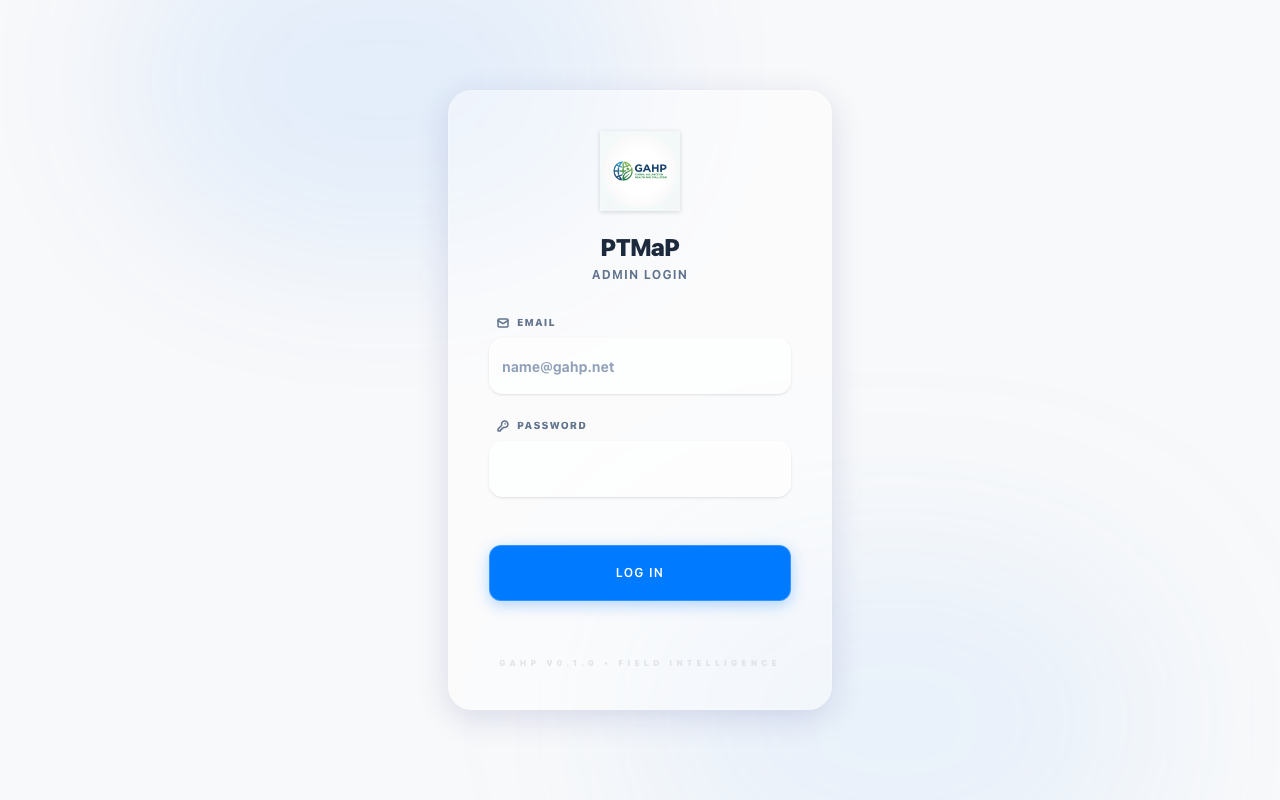
Figure 1: Enter your credentials and click LOG IN
After logging in, you will see the Home Screen. This screen shows:
- Your name and role in the top right corner
- The Available Surveys list — surveys assigned to you that are ready to complete
- The Connection Status indicator (online/offline mode)
- Quick access to Settings where you can install the app on your phone
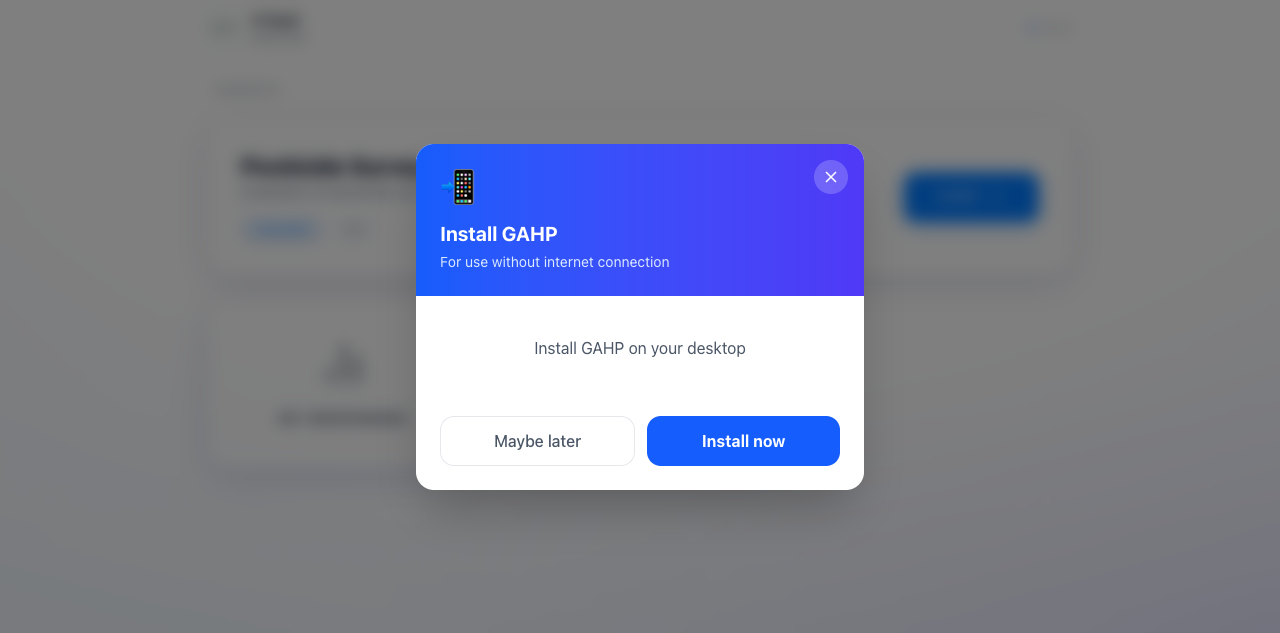
Figure 2: The Home Screen shows all surveys available to you
Click on any survey card to start or continue completing it.
Surveys are divided into sections. Each section contains a group of related questions. Follow these steps to complete a survey:
Navigating Questions
- Read the question carefully
- Tap or click on the answer field to enter your response
- Use NEXT to move to the next question
- Use PREVIOUS to go back and change an answer
Field Types
- Text fields — tap and type your answer
- Number fields — enter numeric values
- Dropdowns (Option) — tap to see the list of choices, then select one
- Multi-Select — select one or more options from the list
- Yes/No — select Yes or No
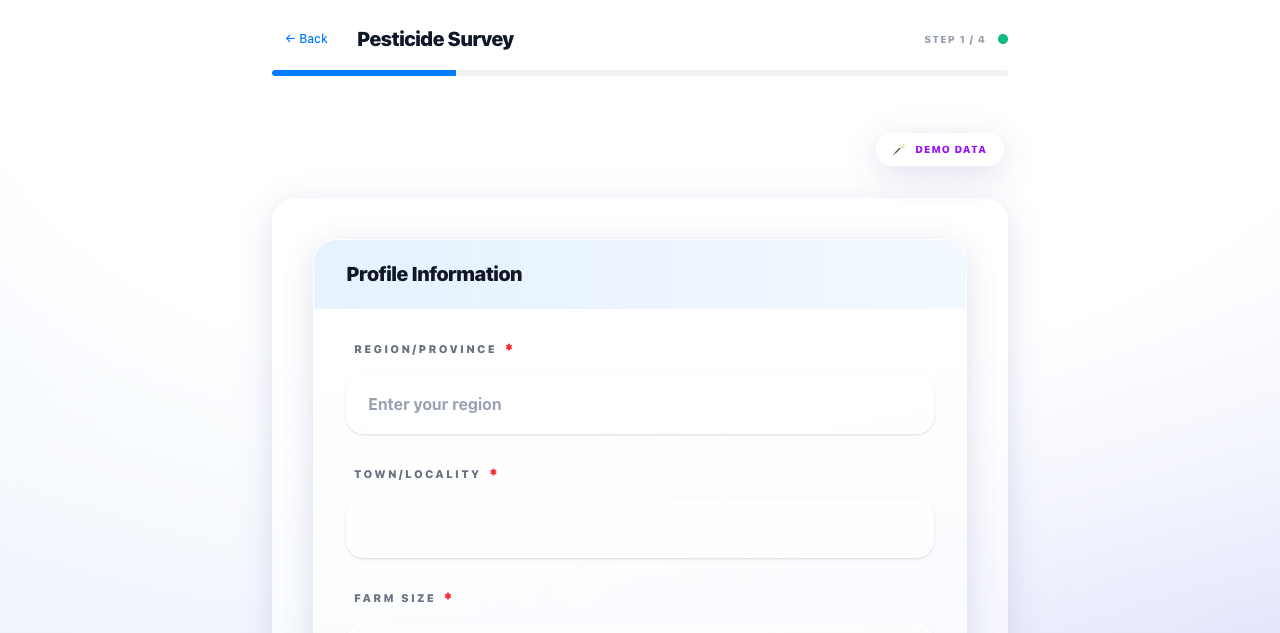
Figure 3: Example survey questions — fill in each field and click NEXT to continue
Step Progress
At the top of the screen, you will see Step X of Y indicating your current position in the survey. You can tap on a completed step to go back and review your answers.
Demo Data Button
If you are testing the survey, you can use the DEMO DATA button (🪄) to automatically fill in sample answers. This is useful for training or demonstrations.
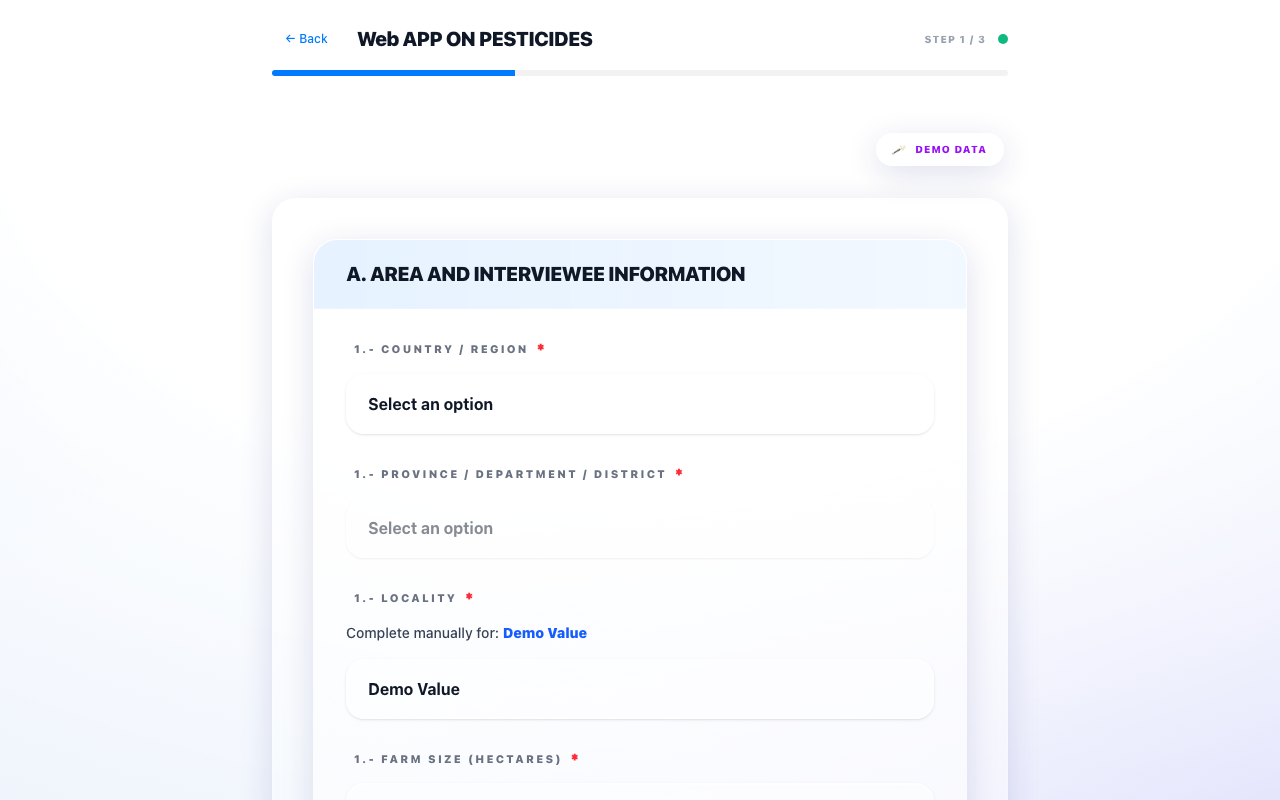
Figure 4: Demo Data button fills in sample answers automatically
You can install GAHP on your phone so it works like a native app. This gives you offline access and a shortcut on your home screen.
How to Install on iPhone / iPad
- Open https://gahp.omatic.com.ar/ in Safari
- Log in with your credentials
- Tap the Share button (square with arrow up, bottom of the screen)
- Scroll down and tap "Add to Home Screen"
- Tap "Add" in the top right corner
How to Install on Android
- Open https://gahp.omatic.com.ar/ in Chrome
- Log in with your credentials
- Tap the menu button (⋮) in the top right corner
- Tap "Install app" or "Add to Home Screen"
- Confirm by tapping "Install"
Android: Use Chrome. Other browsers may not support installation.
After Installing
- The app icon will appear on your home screen
- GAHP works offline — you can complete surveys without internet
- Data syncs automatically when you reconnect
Once you have answered all sections, click SUBMIT on the final screen.
After submitting, you will see a success confirmation screen letting you know your responses have been saved.
Offline Mode — No Internet Needed
GAHP is designed to work without an internet connection. If you are in the field with no signal:
- Continue filling out the survey as normal
- Your answers are saved locally on your device
- When you submit, the data is saved and queued for upload
- When you return to an area with internet, the data automatically syncs to the server
Quick Reference
Common Tasks
| Task | How to Do It |
|---|---|
| Start a survey | Log in, click on the survey card on the home screen |
| Go back to a previous question | Click PREVIOUS or tap the step number at the top |
| Fill with demo data | Click the 🪄 DEMO DATA button in the survey |
| Submit a survey | Answer all required fields, then click SUBMIT |
| Check if data synced | Look for the green Synced badge or yellow Pending badge in the responses screen |
| Data not syncing | Make sure you have an internet connection. Wait a few minutes. If the problem persists, go to Settings and tap Reinstall App. |
| Reinstall the app | Go to Settings and tap Reinstall App to fix detection issues |
| Change your password | Settings (gear icon) — not available in this version. Contact your administrator. |
Troubleshooting
| Problem | Solution |
|---|---|
| Cannot move to next question | Check for required fields (marked with •). All required fields must be answered. |
| Survey not appearing | Log out and log back in. If still missing, contact your administrator — the survey may not be published yet. |
| Data not syncing | Make sure you have an internet connection. Wait a few minutes. If the problem persists, restart the app. |
| Forgot password | Contact your administrator to reset your password. |